






Code Glance
Mini zoom in code editing area, global preview of code
Tags:IDEA plug-incode minimap code navigation CodeGlance IntelliJ IDEA plugin syntax highlighting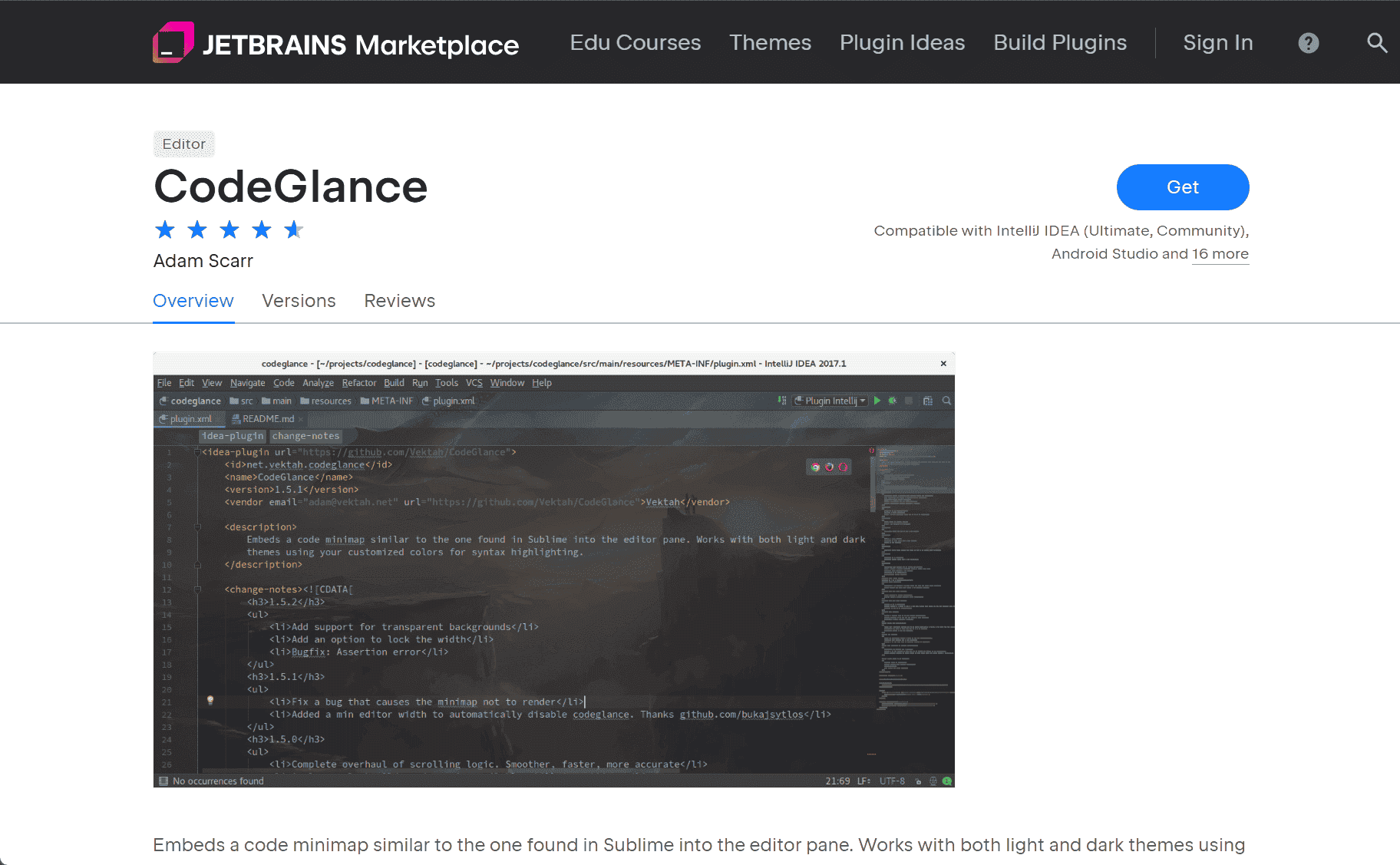
CodeGlance: Enhancing Code Navigation in IntelliJ IDEA
CodeGlance is a plugin for IntelliJ IDEA that introduces a minimap feature to the code editor, providing a zoomed-out overview of the current file. This feature is similar to the minimap found in Sublime Text, allowing developers to quickly navigate and understand the structure of their code.
Key Features
1. Code Minimap
The primary feature of CodeGlance is the code minimap, which displays a condensed version of the code on the right side of the editor. This minimap updates dynamically as the code changes, providing a visual representation of the entire file’s structure. Developers can use the minimap to quickly scroll through large files and locate specific sections of code.
2. Syntax Highlighting
CodeGlance supports syntax highlighting, ensuring that the minimap accurately reflects the code’s structure and syntax. This feature enhances readability and helps developers quickly identify different code elements within the minimap.
3. Theme Compatibility
The plugin is compatible with both light and dark themes in IntelliJ IDEA. It uses the editor’s existing color scheme for syntax highlighting, ensuring a seamless integration with the user’s preferred theme.
4. Customizable Settings
CodeGlance offers customizable settings, allowing developers to adjust the size and position of the minimap to suit their preferences. These settings can be accessed and modified through the IntelliJ IDEA settings menu.
Installation
To install CodeGlance in IntelliJ IDEA:
-
Open IntelliJ IDEA.
-
Navigate to
File > Settings > Plugins. -
Click on the
Marketplacetab and search for “CodeGlance”. -
Click
Installand restart IntelliJ IDEA to activate the plugin.
Conclusion
CodeGlance is a valuable tool for developers working with large files in IntelliJ IDEA. By providing a visual overview of the code, it enhances navigation and helps developers maintain an understanding of the code’s structure. Its compatibility with existing themes and customizable settings make it a versatile addition to the development environment.
data statistics
Relevant Navigation


